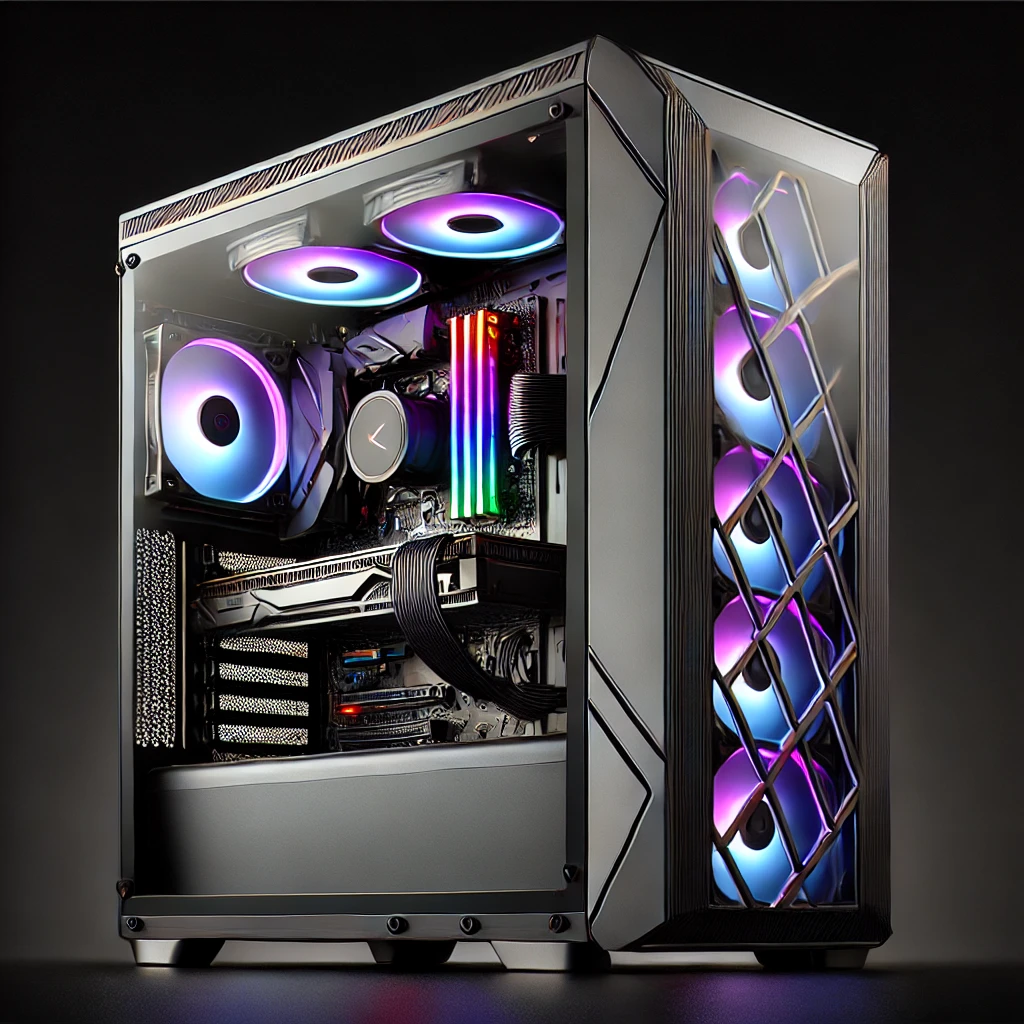

In Part One of our senior’s guide to buying a computer, I promised we wouldn’t get bogged down in processors, RAM and hard drives, because that’s a whole article on its own. Here it is.If you’ve decided you’re ready to buy, but words like “RAM,” “USB-C” and “Mini PC” are turning the whole thing into homework, this one’s for you. Twenty years of teaching seniors in our Lithgow shop has taught me one thing above all: buying a computer was never really about knowing how to use it. It’s about knowing that today’s computers are, for lack of a better word, senior-proof. You genuinely cannot break one just by clicking the wrong button. So let’s take the mystery out of what you’re actually buying.
Laptop, Tower or Mini PC: The Three Shapes a Computer Comes In
We sell all three at our Lithgow shop, and every one of them can be the right computer for someone, it depends on you, not the machine.
Laptops
Good for: moving from the kitchen table to the lounge room, taking to a grandchild’s house, or packing for a trip. Downsides: the screen and keyboard are usually smaller than you’d like, and if something goes wrong inside, repairs tend to be more involved, and pricier, than on a tower.

Towers (Desktops)
Good for: the most computer for your money, the easiest machine for us to repair or upgrade later, and you get to pick your own full-size keyboard, mouse and monitor. Downsides: it stays where you put it, and it takes up more desk space.
Mini PCs
Good for: all the power of a tower in a box about the size of a paperback book, tucked behind a monitor or sitting on a shelf, ideal if desk space is tight. We’ve written a full guide to Mini PCs and NUCs if you want to see how small we mean. Downsides: fewer ports on the box itself, and slightly less room to upgrade down the track.
None of these is the “senior” option or the “expert” option. A Mini PC looks different, but once it’s plugged into a screen, it works exactly the same as a laptop or a tower. Pick the shape that suits your desk and how you’ll use it, not the one that looks the most familiar.

What’s Actually Inside: Processor, RAM, Storage and Ports, in Plain English
The processor (the brain)
Think of the processor as how quickly your computer can think. For everyday use, email, browsing, video calls with the grandkids, looking at photos, you don’t need the fastest one on the shelf. A mid-range processor handles all of that comfortably.
RAM (the short-term memory)
RAM is what your computer uses to juggle several things at once, say, having your email, a few browser tabs and a video call open together. Too little RAM is the single biggest reason an ultra-cheap computer starts to feel sluggish within a year. We recommend 8GB as an absolute minimum in 2026, and 16GB if you can stretch to it, it’s the difference between a computer that keeps up with you and one that makes you wait.
Storage (the long-term memory)
This is where your files, photos and programs live. The short version: make sure it’s an SSD (solid state drive) and not an older spinning hard drive. SSDs are dramatically faster and more reliable, and pretty much every computer we sell today comes with one. How much space you need really comes down to how many photos and videos you plan to keep on the machine itself versus storing online.
USB ports, and why USB-C is worth knowing about
You’ve almost certainly fought with a USB plug before, trying it one way, flipping it over, trying it again. USB-C fixes that: it’s reversible, so it goes in the same either way up, and it’s faster for both charging and moving files. Most new computers now include at least one USB-C port alongside the older-style USB-A ports, and that’s a genuinely good thing. If cables and plugs are a source of stress for you, our plain-English guide to phone, computer and video cables is worth a look, it’s written for exactly this kind of confusion.
HDMI, and a note about older monitors
Almost every computer we sell today comes with an HDMI port for connecting to a monitor or TV. If you’re planning to reuse an older monitor, it’s worth checking the back of it first: if the only inputs are the old blue VGA plug or a white DVI plug, with no HDMI socket, that monitor is unfortunately due for retirement. Rather than hunting for adapters that may or may not work well, it’s usually simpler, and gives you a much better picture, to buy a new monitor at the same time.
Why Cheap Computers Are Often a False Economy
It’s tempting to grab whatever’s cheapest and be done with it, but we see the other side of that decision often: a computer that felt like a bargain at the till, then felt painfully slow within twelve months, with no local shop standing behind it when it did.
As a rule of thumb, a genuinely good computer for everyday senior use sits somewhere between $900 and $1,500. That’s not us trying to upsell you, it’s the price point where you get enough processor, enough RAM and a proper SSD to still feel comfortable in three or four years’ time, backed by a computer we’ve actually set our eyes on before it left the shop, rather than a bargain-bin machine off a pallet.
Our Extras (So There Are No Surprises)
We don’t push these on anyone, but they’re here if you want them.
- Data transfer, from $150: we move your photos, documents and files across from your old computer to your new one.
- Setup, $50: we’ll sign you into your accounts, email, iCloud, your Microsoft account, so it’s ready to go the moment you sit down.
- Personal training, $80 an hour: one-on-one, at your pace, on your new computer or anything else you’re stuck on. You can read more about our personal training and senior tech classes here.
We’ve Been Teaching Seniors for 20 Years, Here’s What That Actually Means
Buying a computer was never really the hard part. What worries people is “what happens after I get it home?” That’s the bit we focus on. Twenty years of running tech classes for seniors here in Lithgow has shown us, over and over, that a computer is basically senior-proof, you cannot break Windows or a Mac by clicking the wrong thing. Worst case, we help you undo it. What actually helps is knowing that, and knowing there’s a real person down the road who’ll show you again, as many times as it takes.
We’re a small, independent shop, not a chain with sales targets to hit, and we like to think we’ve got more heart than sales goals. That means our advice is about getting you the right computer, not the most expensive one, and it’s why we’d rather sell you nothing than sell you the wrong thing.
Frequently Asked Questions
Should I buy a laptop, a tower or a Mini PC?
Whichever suits your space and habits. All three work identically once connected to a screen, so choose based on whether you need to move it around and how much desk space you have, not which one feels more familiar.
How much RAM does a senior actually need?
8GB is the minimum we’d recommend in 2026, and 16GB is more comfortable if your budget allows, especially if you like keeping several browser tabs or programs open at once.
Is USB-C really worth worrying about?
It’s worth knowing about, not worrying about. USB-C plugs go in either way up and move data and power faster than the older USB-A style, and most new computers now have at least one.
What’s a reasonable price to pay for a computer?
For day-to-day use, email, browsing, photos and video calls, somewhere between $900 and $1,500 typically buys a computer that will still feel comfortable in three to four years, rather than one that slows down within twelve months.
Does my old monitor need replacing?
Only if it doesn’t have an HDMI input. Check the back for a small rectangular HDMI port, if all you can see is an old VGA (blue, pin-style) or DVI (white) connector, it’s time for a new monitor.
Come In and Talk It Through
If you’re in Lithgow, Bathurst, Katoomba, Leura, Oberon, Blackheath or anywhere in between and you’d rather talk this through in person than read another article, drop by the shop at 85 Main Street, Lithgow, or get in touch here. If you missed it, Part One of our senior’s guide to buying a computer covers the non-hardware side of buying a computer, the questions worth asking yourself before you even look at a screen, and our guide to a scam-resistant computer for seniors is worth a read if remote-access scams are more of a worry for you than which box to buy.